Profile & security
Edit your profile, change your password, and turn on two-factor authentication.
Your profile is how you show up around RPG World, and the security tools keep your account yours. Both live on one page — open the account menu in the top-right and choose Profile.
Edit your profile
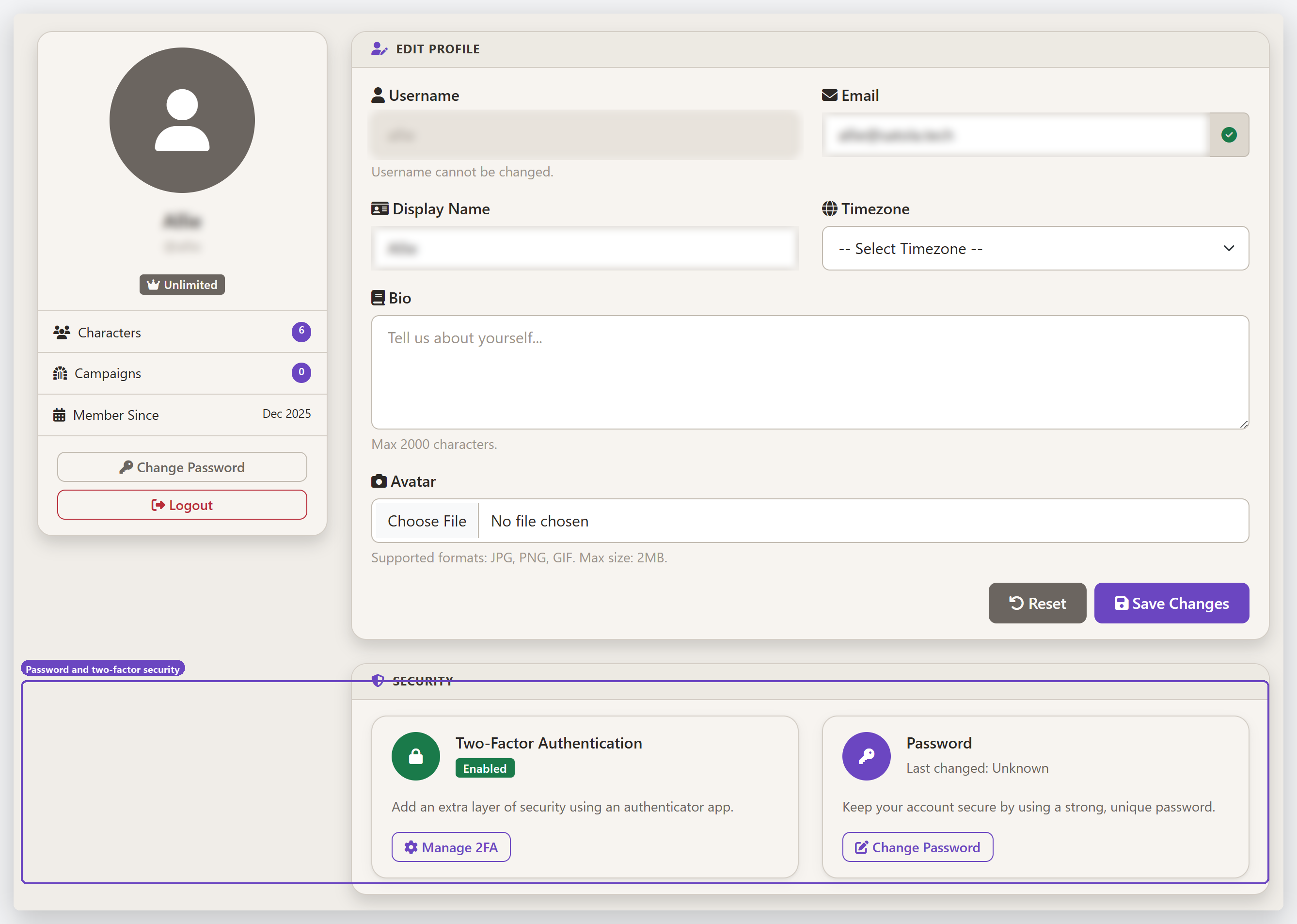
On the Profile page you can set:
- Display name — the name other players see.
- Email — your contact and sign-in address (a green check means it's verified).
- Timezone — so campaign session times show correctly for you.
- Bio and Avatar — a little about you and a picture (JPG, PNG, or GIF up to 2 MB).
Your username is fixed and can't be changed. Make your edits and select Save Changes.
Change your password
In the Security section, select Change Password to set a new one. Use something strong and unique — a password you don't reuse anywhere else.
Turn on two-factor authentication
Two-factor authentication (2FA) adds a second step at sign-in, so a password alone isn't enough to get into your account. Select Manage 2FA and follow the steps:
- Scan the QR code with an authenticator app (Google Authenticator, Authy, 1Password, and the like).
- Enter the 6-digit code the app shows to confirm.
- Save your recovery codes somewhere safe — they let you back in if you ever lose your phone.
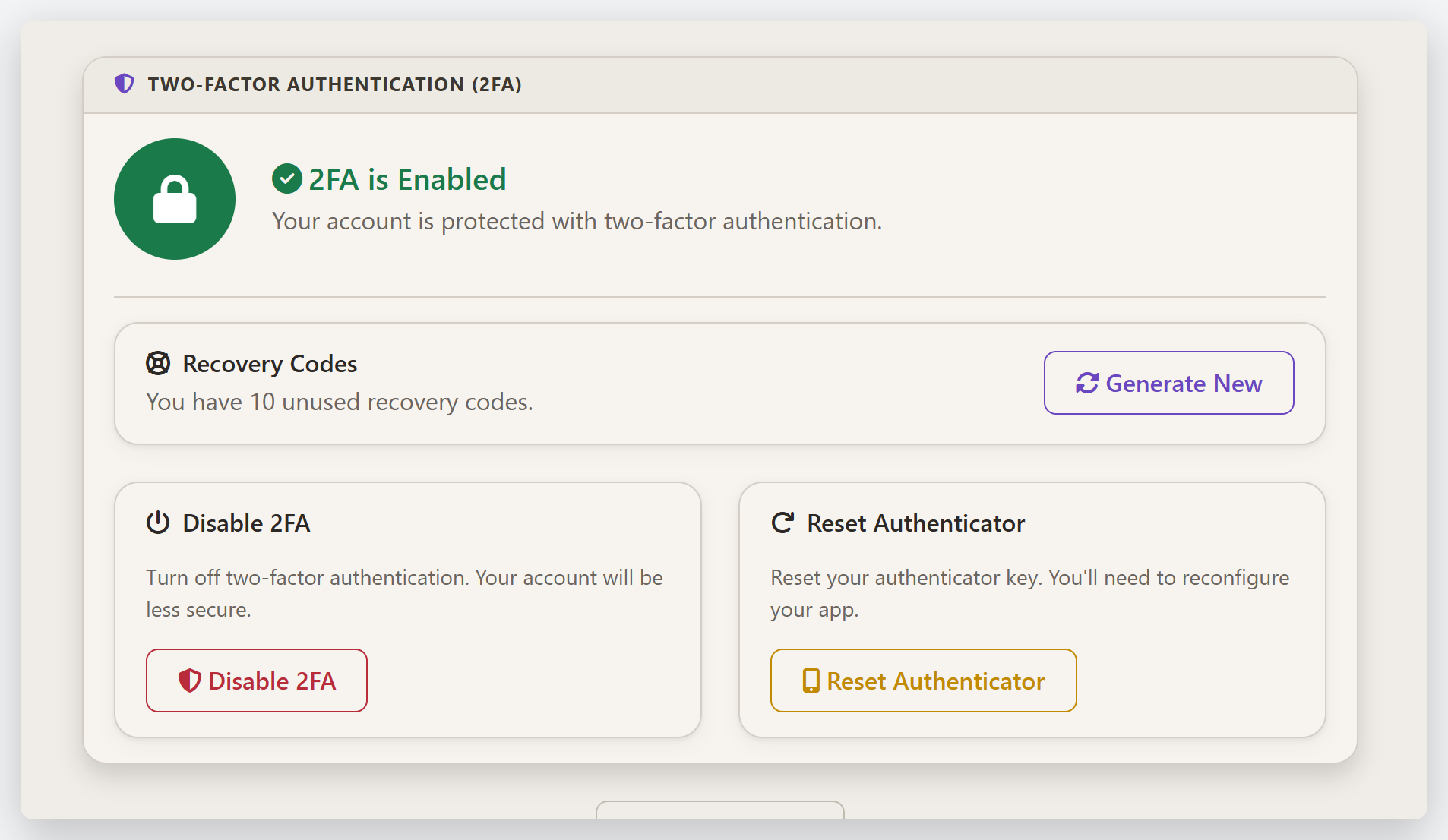
Once 2FA is on, this page lets you regenerate recovery codes, reset your authenticator, or turn it off.
Lost your device? Use one of your saved recovery codes to sign in, then reset your authenticator here and pair a new app. If you're signed in and want fresh codes, use Generate New — it invalidates the old set.
Signing in with Google or Facebook
Prefer not to manage a password? You can sign in with Google or Facebook from the login page — see Create your account for how federated sign-in works.
Tips
- Turn on 2FA. It's the single biggest thing you can do to protect your account.
- Store recovery codes offline — a password manager or a printed copy, not the same phone as your authenticator.
- Set your timezone so scheduled campaign sessions line up with your local clock.
Last updated July 31, 2026